
Requires: Houzi app 1.4.8+ and Houzi Rest Api plugin 1.4.8+ with AI enabled. Follow the AI Features setup guide first to enable AI on your plugin.
Houzi 1.4.8 introduces Home AI — an AI-first home design — along with two AI-powered home widgets, AI Smart Terms and AI Matches, that you can add to any home design.
Select the Home AI design
In Houzi Builder, go to the Home section and pick Home AI from the Home Designs on the top right — just like any other home design. The Mobile App View in the center shows a live preview.
The AI Header
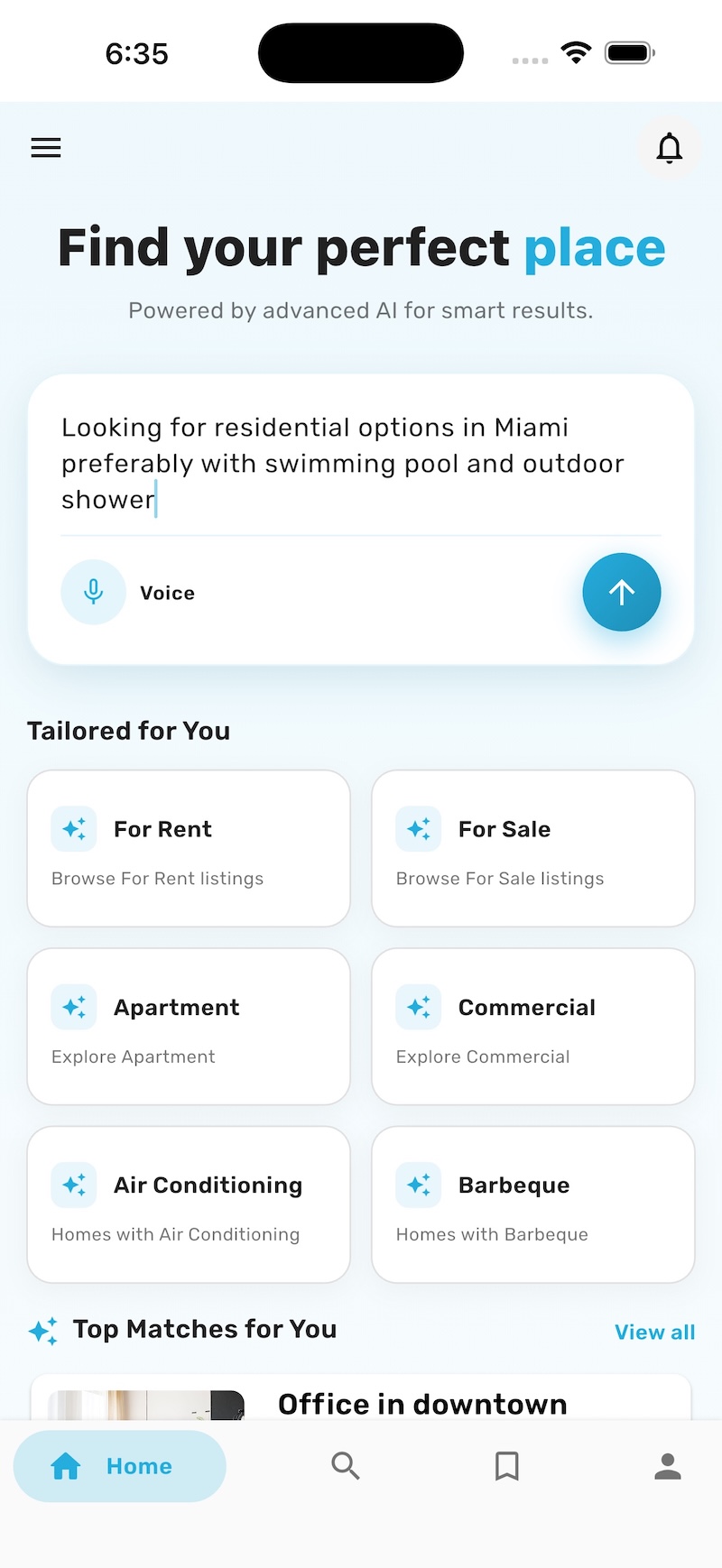
The AI header is the fixed top area of the Home AI design. It contains:
- Hero title — a large greeting headline (e.g. “Find your perfect place”) with a subtitle.
- AI search card — a large, multiline natural language input where users type what they’re looking for in plain words, with a Voice button for speaking the query instead. Submitting opens AI Property Search.
The header is built into the design, so there’s nothing to configure in the builder. The hero texts come from the app’s localization files (ai_* keys in assets/localization/*.json), so you can reword them per language like any other string — see Localization.
Everything below the header is the regular config-driven home_layout pipeline — the same sections every other home design uses (term_with_icons, property, recent_search, and the new AI widgets below), in the order you arrange them in the builder.
AI Widgets
Two new widget types are available when you add a new section in the builder’s Home section. They work in any home design — you don’t have to use the Home AI design to use them (though Home AI ships with both by default).
Both widgets render their own headers and are fully self-contained: they fetch their own data, and if there’s nothing to show they hide themselves — an empty section never appears on the home screen.
ai_smart_terms — “Tailored for You”
A two-column grid of smart suggestion cards built from your website’s own taxonomies — property status, property type, and property features. The cards are personalized: they are selected from the user’s recent searches (most-searched terms first) and backfilled with your site’s popular terms, so the grid is useful even for a brand-new user.
The short subtitle line under each card title is AI-curated (this is what the plugin’s Lite Model is used for) so the wording resonates with the user’s recent intent — city, size, budget. The cards render instantly with a generic subtitle and upgrade to the AI copy when it arrives; if AI is off or unreachable, the generic line simply stays. Tapping a card opens the matching property listing.
Configurable fields:
- Title — the section header. Leave empty to use the localized default “Tailored for You”.
ai_matches — “Top Matches for You”
A property listing personalized from the user’s own past searches. The widget mines the recent-searches history (captured by both the normal and AI search flows), builds one filter from the dominant signals — city, property type, bedrooms — and shows the matching properties, with a View all action. When the user has no search history yet, it falls back to your Featured listings, so the section is never empty.
Configurable fields:
- Title — the section header. Leave empty to use the localized default “Top Matches for You”.
- Design — the property item design used for the cards (same design options as the property widget type).
- View Type — carousel or list.
Edit configurations.json directly
If you edit your configuration file by hand instead of using the builder, the AI widgets are regular home_layout entries:
{
  "section_type": "ai_smart_terms",
  "title": ""
},
{
  "section_type": "ai_matches",
  "title": "",
  "layout_design": "design_01",
  "section_listing_view": "list"
}
Leave title empty for the localized defaults. As always, increment api_config_version after changing the configuration.